What a traced file looks like inside
The tracer groups the result by object: a <g> for the background (when the image has one) comes first, then one <g> per separate object, each named in a <title> (Background, Object 1, Object 2 …). Inside each group every shape is its own <path> element, with a fill and a d attribute holding the outline as move-to, line-to and cubic-curve commands, and shapes are nested by what encloses them: a shape that holds others (a face holding its eyes) becomes a group of its own (Part 1.1, Part 1.1.1 …) whose first path is the shape itself, drawn whole underneath what it holds, so hiding an eye shows the face, not a hole. Specks smaller than a few pixels stay unnamed paths inside their parent. There are no strokes and no text elements: a logo's wordmark is a filled outline, not type. With Layers set to By color in Settings the file has no groups and one <path> per colour instead.
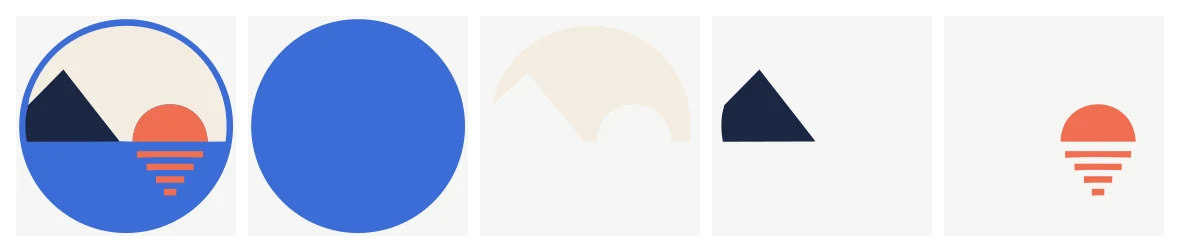
The sample SVG on our home page (left), then each of its four paths on its own: every shape a separate element with its own fill, ready to select, recolor or delete.
The editor reads exactly that structure, at the file's own size and coordinates. Every path is a shape you can click to select. The layer list shows the file's top-level groups: a file whose shapes sit directly in the SVG (a By color trace) opens as a single layer, and a file grouped by object opens with one layer per group, named after it.
Edits the browser editor handles well
- Recolour a shape. Select it and pick a new fill. Because one path holds every region of that colour within an object, recolouring "the blue" changes all the blue areas of that object at once; if you need two of them to differ, that is a split for a desktop editor.
- Move and scale. Drag to move, use the handles to resize. Scaling a vector never blurs it, so make a version sized for the page header and another for a favicon from the same file.
- Move individual points. Select a shape and switch to the points tool (N): every anchor point of the traced curve gets a handle you can drag, and its curve handles bend the segments next to it. This is how you fix a wobble or straighten one edge without leaving the browser.
- Align and space shapes. Select several shapes and align their edges or centres to each other, or to the artwork (a single shape always aligns to the artwork); with three or more selected, Distribute spaces them with equal gaps.
- Weld, subtract, intersect. Select two or more shapes and use Combine shapes: Union welds them into one outline, Subtract cuts the shapes above out of the bottom one, Intersect keeps only the overlap, Exclude keeps what does not overlap, and Divide cuts every overlap into its own shape. Curves stay curves, the result keeps the bottom shape's colour and layer, and one undo brings the original shapes back. This is the usual step before cutting: weld overlapping letters into one piece, or subtract a shape to make a knockout.
- Snap to grid. Turn on Snap to grid (the magnet) and pick a grid size: what you move, draw, resize or reshape point by point then lands on the grid, which is drawn over the artwork while it is on. The editor remembers the setting in your browser.
- Reuse shapes and work on several files. Keep a selection in My parts (stored in your browser for your account, exportable to a file) and add it to any other drawing. Open another of your unlocked files in a new tab to copy between them: each tab has its own undo history and saves as a new version of its own file.
- Reorder, hide and lock. Layers can be hidden, locked (so clicks go to the shapes below), renamed and moved up or down; within a layer, Ctrl+D duplicates a shape and the arrow keys nudge it.
- Delete leftovers. Speckle paths and a leftover background rectangle are one click to remove. This is usually the first edit after a JPEG trace.
- Export. Save the SVG, or export a PNG at a chosen pixel width with transparency preserved. Editing an unlocked result does not use additional credits.
The editor only ever opens vectors you own: your own uploaded SVG or a result you have unlocked. Previews are watermarked rasters and cannot be edited, which is how the paid vector stays off the network until it is paid for.
Edits that belong in a desktop vector editor
Some changes need path surgery the browser editor does not offer:
- Splitting a colour into separate objects (the two blue shapes that must move independently): "Break apart" in a desktop editor.
- Offsetting an outline (growing or shrinking it by a fixed distance, a contour for a sticker cut).
- Converting fills to centre-line strokes for pen plotters or single-line engraving.
- Converting text to outlines. The browser editor adds and keeps live text, but does not turn it into paths.
Inkscape (free, open source) handles all of these; so do the commercial editors. Open the SVG, use "Break apart", "Outset" or the node tool as needed, and save. Because the file is plain SVG with standard path data, nothing about it is tied to png2svg.art.
A sensible order of work
- Unlock and open in the editor. Delete stray shapes, fix obvious colours, smooth a wobbly edge point by point, check stacking.
- Weld or cut shapes with Combine, and align what should line up.
- Save the SVG. Run it through the optimiser if size matters (metadata stripping and coordinate rounding; check the reported before/after).
- Offset or break apart in a desktop editor if the job needs it.
- Keep the unlocked result in your files: re-downloading it is free while it is stored, and you can reopen it in the editor any time within the retention period.
Limits to keep in mind
- The editor cannot add a gradient; fills are solid colours or none. Strokes (colour and width) can be added, and gradients, strokes and live text already in a file are kept. Anything the editor cannot keep is listed before you save.
- Very large traces (thousands of paths from a detailed illustration) are slow to manipulate in any browser; simplify the trace with a lower colour count before editing.
- Exported PNGs are rasters at the size you choose — export at the largest size you will need, or keep using the SVG.